 FreeMetrics
Setup guide
About ten minutes. You need to be a Jira administrator and have access to a Google Cloud project where you can create a service account and a BigQuery dataset. Prefer watching? The whole flow in 60 seconds:
1. Create a dataset in BigQuery
In the Google Cloud console open BigQuery, pick your project and create a dataset, for example jira. Choose the location where your other data lives (e.g. EU or europe-west1). The plugin detects the location automatically.
2. Create a service account and key
Open IAM & Admin → Service accounts → Create. Name it jira-sync. Grant two roles:
| Role | Where | Why |
|---|---|---|
BigQuery Job User | Project | To run load jobs |
BigQuery Data Editor | The jira dataset only | To create tables and write rows |
Then open the account, Keys → Add key → JSON, and download the file. Nothing else in your project is touched.
PROJECT=my-project; DS=jira
gcloud iam service-accounts create jira-sync --project $PROJECT
gcloud projects add-iam-policy-binding $PROJECT \
  --member serviceAccount:jira-sync@$PROJECT.iam.gserviceaccount.com \
  --role roles/bigquery.jobUser
bq add-iam-policy-binding --member serviceAccount:jira-sync@$PROJECT.iam.gserviceaccount.com \
  --role roles/bigquery.dataEditor $PROJECT:$DS
gcloud iam service-accounts keys create key.json \
  --iam-account jira-sync@$PROJECT.iam.gserviceaccount.com
3. Paste the key in Jira
In Jira open Apps → BigQuery Sync for Jira. Paste the JSON key, type the dataset name and press Test connection. The plugin confirms the project, dataset and location, then creates the tables.
The key is stored encrypted in Atlassian's storage for this app only. It is never shown again and you can remove or replace it at any time on the Destination page.
4. Choose what to sync
Pick all projects or a list of projects. Optionally add a JQL filter (for example issuetype != Sub-task) — the plugin validates it against Jira before saving. You can also exclude fields you do not want in BigQuery, such as description or comment.
Press Start sync. The first backfill begins immediately and you can watch it on the Overview page. A site with 50,000 issues typically finishes within an hour.
5. See your data
When the backfill finishes, open the Data & models page. Every table and view shows a live row count, and the Preview link next to each one shows real rows right inside Jira — no Google console needed. This is the quickest way to confirm the sync worked.
Open in BigQuery jumps to the same dataset in the Google Cloud console. Your browser must be signed in to a Google account that has access to the project you configured — the service-account key the plugin uses does not sign you in. From there (or from Looker Studio, Tableau, Power BI or Metabase) query the views directly, starting with issues_current.
Note: the plugin is an admin tool that lives under Jira Settings → Apps. It deliberately adds nothing to issue screens, boards or dashboards — its output is the BigQuery dataset itself.
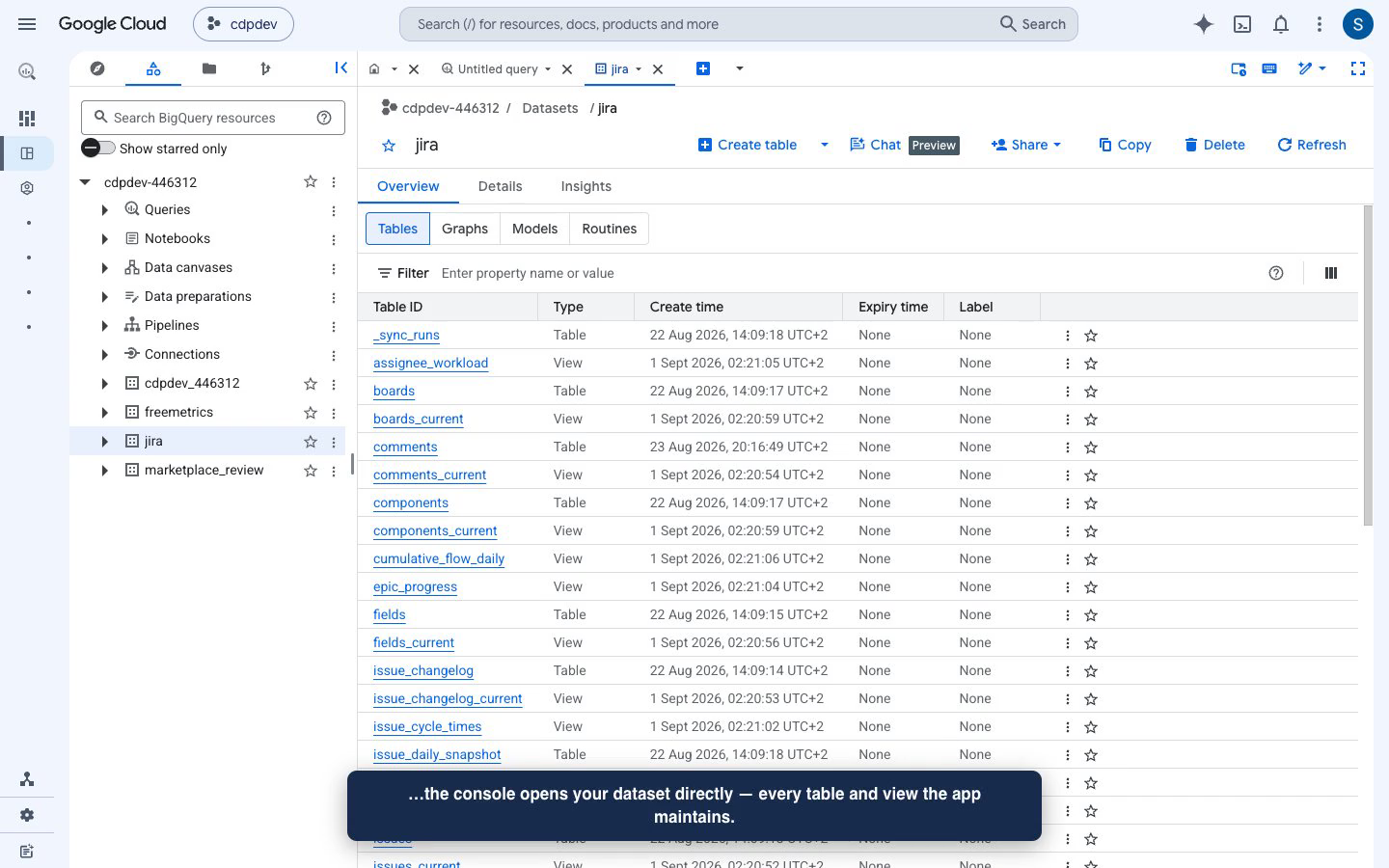
Your dataset in the Google Cloud console: every table and view the plugin creates and maintains.
Schedules
| Job | Default | What it does |
|---|---|---|
| Changes | every 5 minutes | Issues created, updated or deleted since the last run, plus comments and worklogs. |
| Reference data | every hour | Projects, users, fields, statuses, sprints, boards, versions, components. |
| Nightly reconcile | 02:00 UTC | Re-checks every issue in scope, catches anything missed and writes the daily snapshot. |
All three can be changed per sync on the Settings page. You can also run any job right now from the Overview page.
Tables
Sixteen tables are created in your dataset. Each is append-only with a _synced_at column; a *_current view on top of each gives you the latest row per key.
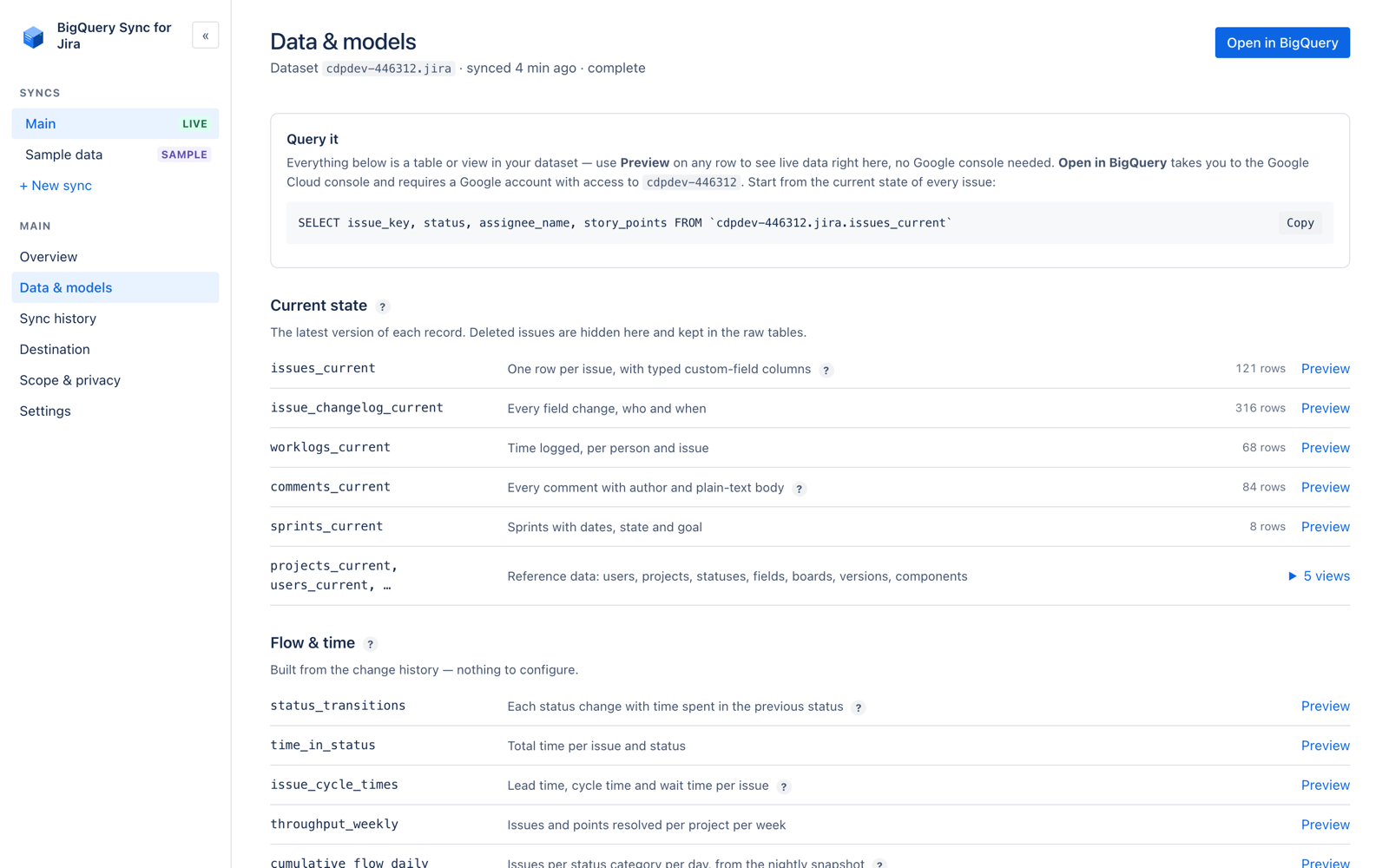
The Data & models page documents every table and view with live row counts — Preview shows real rows without leaving Jira.
| Table | Key | Notes |
|---|---|---|
issues | issue_id | Standard fields as typed columns; every custom field as a column named after the field; raw_fields JSON for everything else. Partitioned by updated day, clustered by project. |
changelog | history_id, field | One row per field change: from, to, author, created. |
comments | comment_id | Body as text, author, created, updated, internal flag. |
worklogs | worklog_id | Seconds spent, started, author, comment. |
issue_daily_snapshot | issue_id, snapshot_date | State of every open issue at 02:00 UTC. For "how many open bugs did we have on 1 March". |
projects, users, fields, statuses, priorities, resolutions, issue_types, versions, components, boards, sprints | id | Reference data, refreshed hourly. |
Views and models
Eleven views are created and kept up to date by the plugin. They are plain SQL views, so you can read their definitions in BigQuery and copy them.
issues_current,comments_current,worklogs_current— latest state, deleted rows excludedstatus_transitions— every status change with the previous status and the time in ittime_in_status— total time per issue per statusissue_cycle_times— created → started → resolved per issue, in hoursthroughput_weekly— resolved issues per week per projectsprint_report— committed, completed, added, removed, carried overepic_progress— done / total children per epicopen_issue_age,assignee_workload,worklog_hours_weekly
The same models are available as a dbt package (email [email protected] for the repo) if you prefer to own them in your repo.
History and deletions
Nothing is overwritten. Every run appends rows, so SELECT * FROM issues WHERE _synced_at <= '2026-03-01' shows you Jira as it was. Deleted issues, comments and worklogs get a row with is_deleted = true and disappear from the _current views.
BigQuery cost
The plugin uses load jobs, which are free in BigQuery. You pay for storage (about $0.02 per GB per month; a 100,000-issue site is well under 1 GB) and for the queries you run. Partitioning on updated keeps the scanned bytes small.
Several syncs
Up to ten syncs per site, each with its own projects, dataset, schedule and, if you like, its own service-account key. Typical uses: one dataset per business unit, or a fast 5-minute sync for one project and an hourly one for the rest. Two syncs cannot write to the same dataset.
When a run fails
The Overview page shows the failed run in red with the reason in plain words and what to do — usually an expired key, a revoked role, or a dataset that was deleted. Fix the cause and press Run now; the sync continues from where it stopped. Failed runs never leave partial rows behind: each load job is atomic.
Security and privacy
This is the strongest security model available for this job — and it is verifiable, not a promise. BigQuery Sync for Jira is the only connector in its category built on Atlassian Forge, the only architecture in which your Jira data cannot pass through vendor servers even by mistake: the app executes inside Atlassian's infrastructure, and its manifest — reviewed by Atlassian on every release — permits network egress to exactly two Google endpoints. Anyone can check this in a minute; no other connector in the category can make the same claim.
- The plugin runs entirely on Atlassian Forge. There are no FreeMetrics servers; we cannot see your Jira data or your key.
- The only external hosts it talks to are
bigquery.googleapis.comandoauth2.googleapis.com, both declared in the app manifest and reviewed by Atlassian. - The service-account key is stored with Forge's encrypted secret storage and never returned to the browser.
- Uninstalling the app deletes all its storage. Your BigQuery dataset is left untouched.
FAQ
Does it work with team-managed projects?
Yes. Story points and sprints are resolved for both company-managed and team-managed projects.
Does it sync Jira Service Management?
Issues, comments and worklogs from JSM projects are synced like any other project. Request types, SLAs and queues are on the roadmap.
Can I rename tables or change the schema?
Table names are fixed so the views keep working. Add your own views on top; the plugin never drops anything it did not create.
What happens when I add a custom field in Jira?
It appears as a new column on the next run. Existing rows have NULL in that column until the nightly reconcile refreshes them.
Something I need is missing.
Email us. If it is a reasonable addition we build it for you.